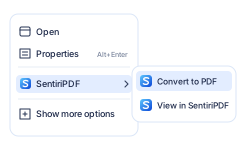
Right-click to convert
In File Explorer, right-click a file: Convert to PDF, or View in SentiriPDF. Select several to combine them.
 Sentiri

PDF. Without the fuss.
Not only for reading PDFs.
Create, convert, combine, rearrange, fill, sign, print and send. All your everyday PDF tasks in one lightning-fast Windows app.
Every feature in the trial$9 once, yours to keepMicrosoft Store
 report.pdf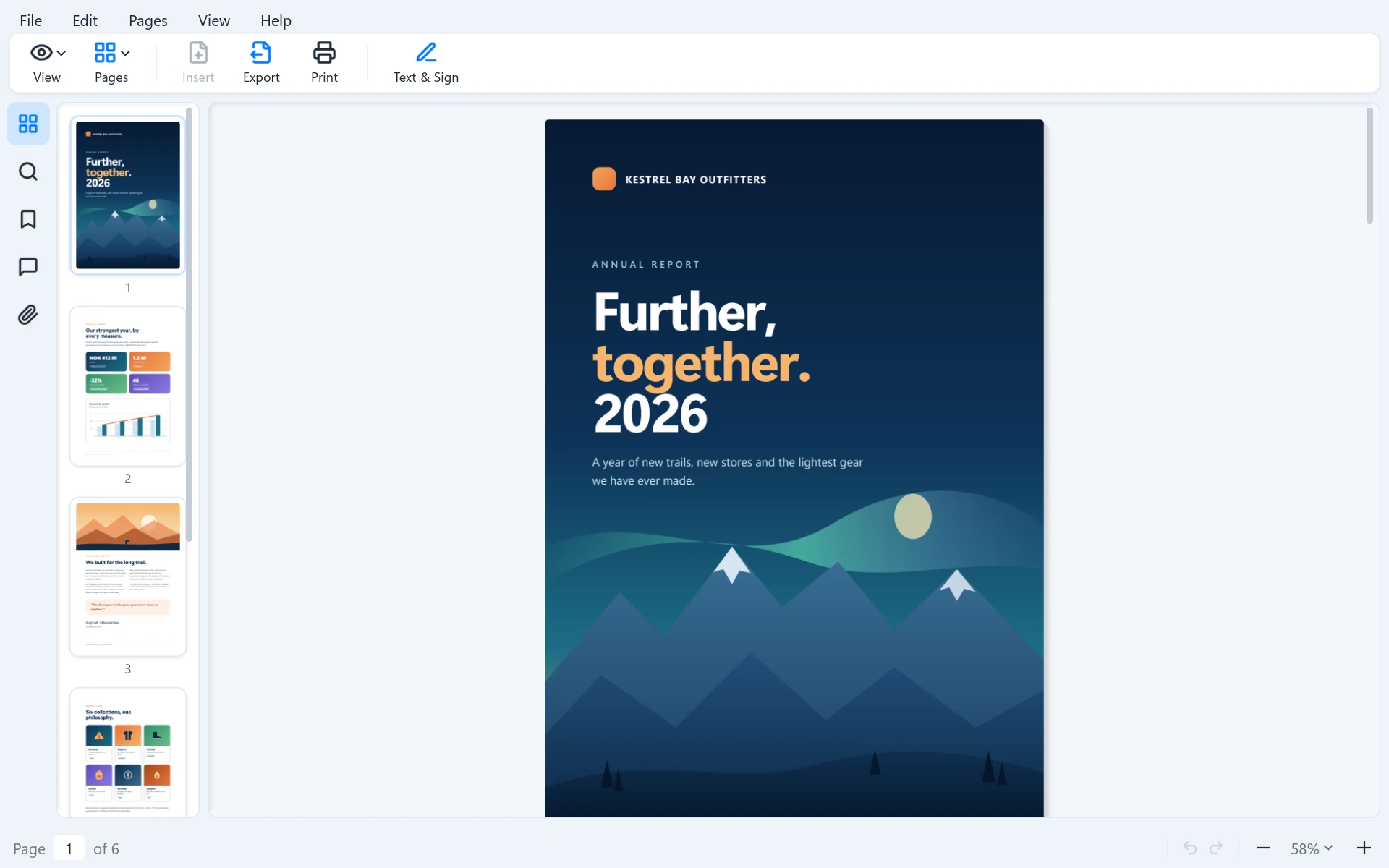
Everyday document jobs finished with fewer apps, fewer interruptions and less waiting.
Create. Convert. Combine. Fix. Fill. Sign. Print. Send.
Convert Word, Markdown and HTML. Merge, rotate, fill, sign, print and send, all in one app.
Instant-feeling interactions, dialogs that stay responsive, a shortcut for everything and tight Windows integration.
No Sentiri account, no subscription, no cloud, no AI features, no ads, no newsletters and no nagging.
The jobs that used to need three programs and a website, done in seconds.
Drag them together and save. Nothing is uploaded to an online service, and nobody asks you to sign up.
See how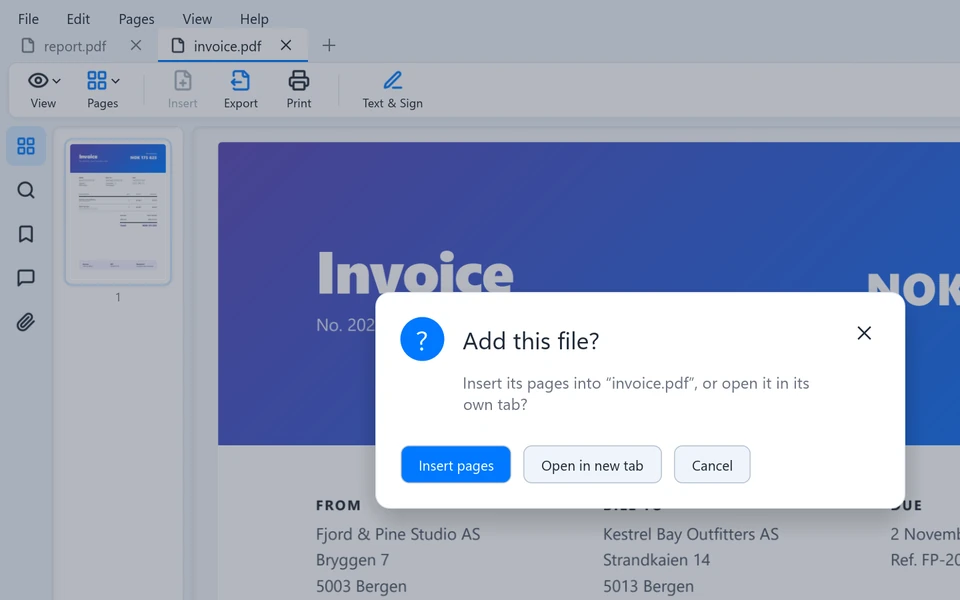
Rotate the page, save, and move on. No separate utility.
See how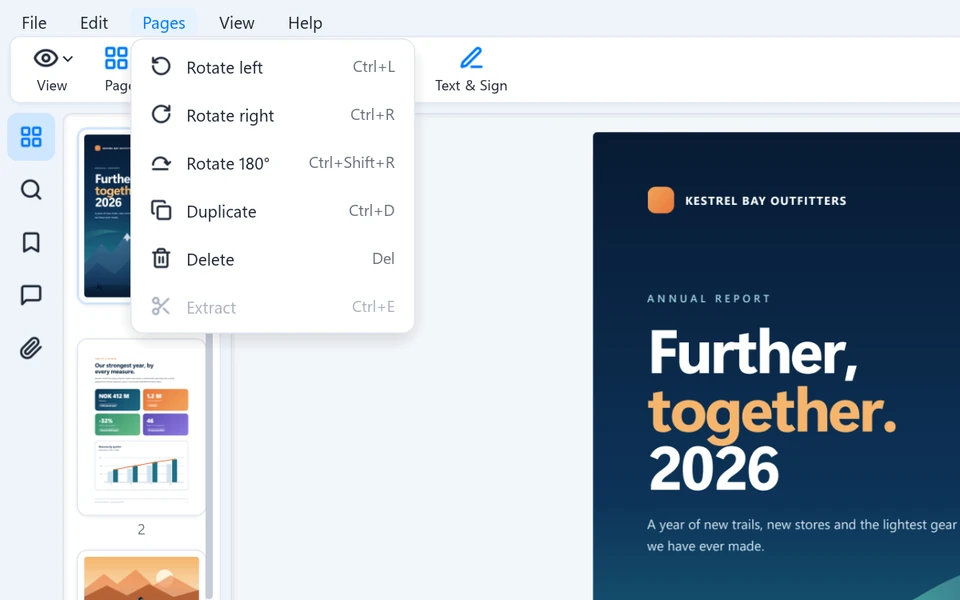
Fill in the form, add your signature and send it back, without printing or scanning a thing.
See how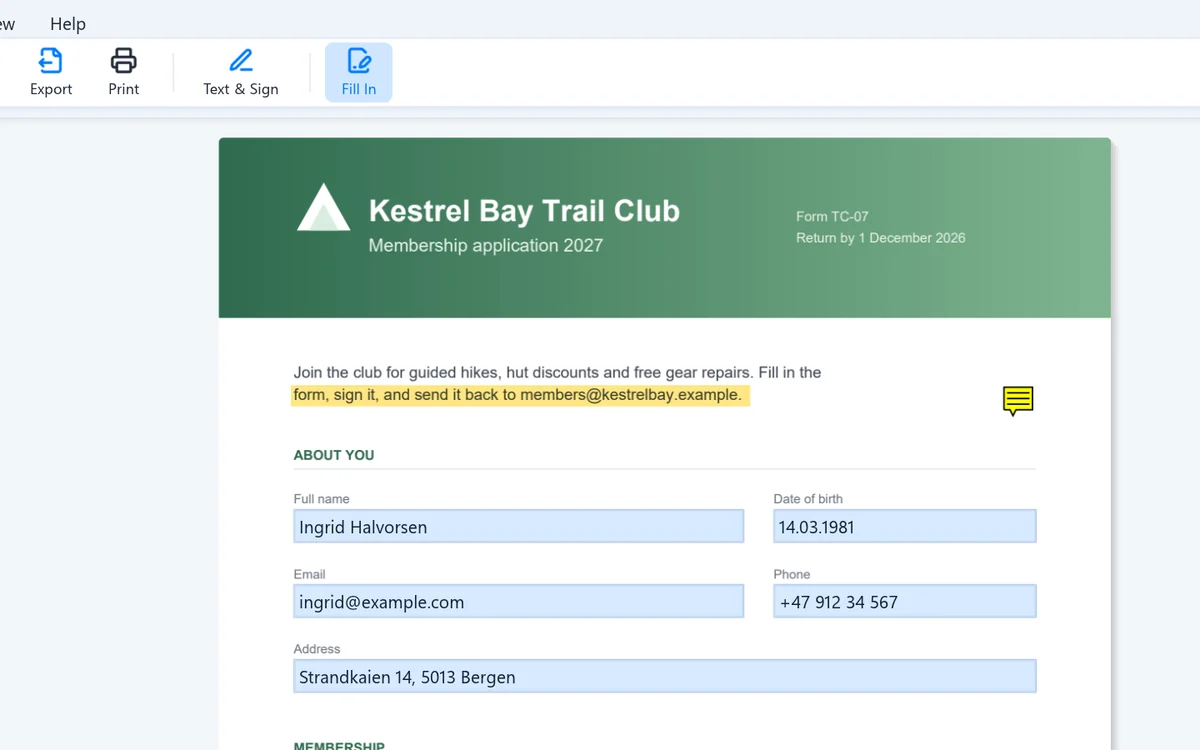
Right-click a Word file, choose View in SentiriPDF, press Ctrl+P. Done.
See how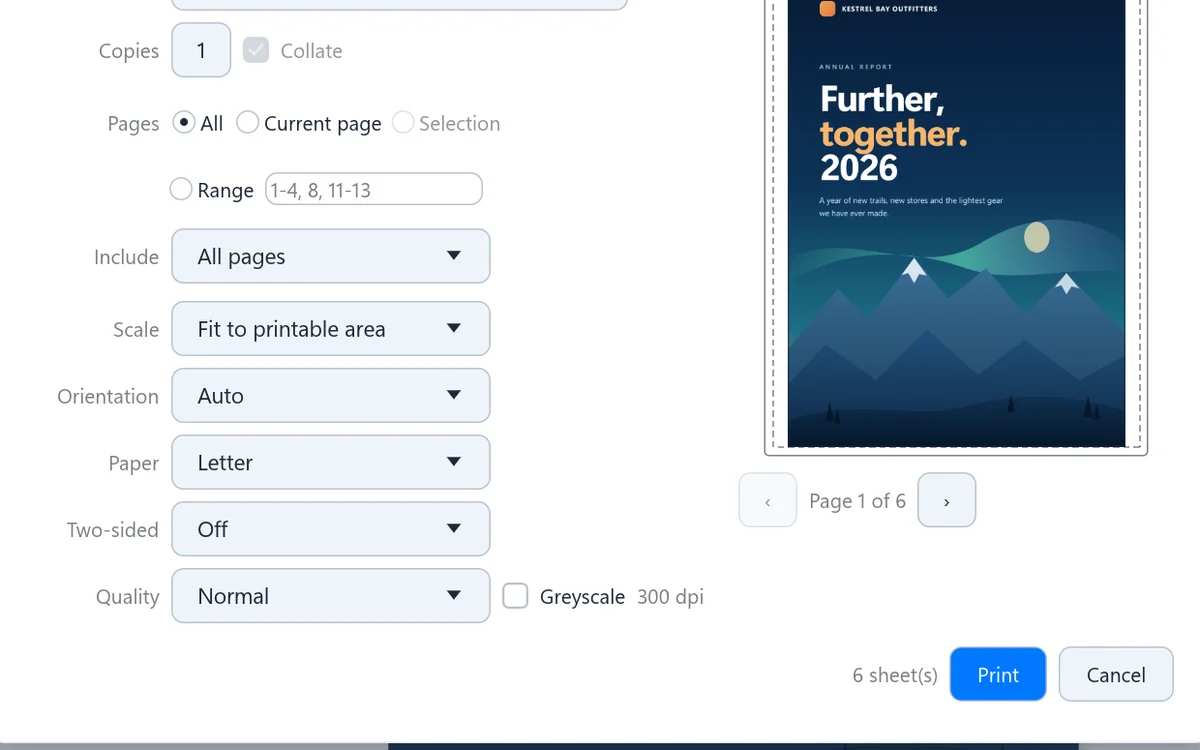
The bank sends a form by email. Here is the whole job, without a printer or a scanner.
Click the attachment and the PDF shows right in Outlook Classic's reading pane. Then open it in SentiriPDF.
Type into the form fields, then place the signature you drew once and saved.
File, Send attaches the finished PDF to a new email. Or drag it straight into one.
Not just a quick start. SentiriPDF stays quick while you work.
Open a PDF and the first page is there in under 300 ms*. Scrolling stays smooth, even through hundreds of pages.
Press Ctrl+P and the dialog is there at once, with a preview. Printers are found in the background, and you keep working while the job prints.
Right-click in File Explorer, drag files in and out, and preview attachments in Outlook Classic.
I printed a Word document through SentiriPDF, and the paper was out of the printer before Word had even shown its print dialog on the same PC.
The developer's own experience, not a lab benchmark.* Measured from launch to the first page on the developer's Windows 11 PC. Your PC may differ.
Built into File Explorer and Outlook Classic, so your PDFs are always within reach.
In File Explorer, right-click a file: Convert to PDF, or View in SentiriPDF. Select several to combine them.

Read a PDF in Explorer's preview pane the moment you select it, without opening anything.
Preview PDF attachments right in Outlook Classic's reading pane.
I built the PDF app I wanted to use.
Everyday tasks had become complicated. I wanted one fast, straightforward Windows tool, so I built SentiriPDF for myself, and decided to share it.
Every feature in the trial. Bug fixes, improvements and new features for version 1 at no extra charge.
