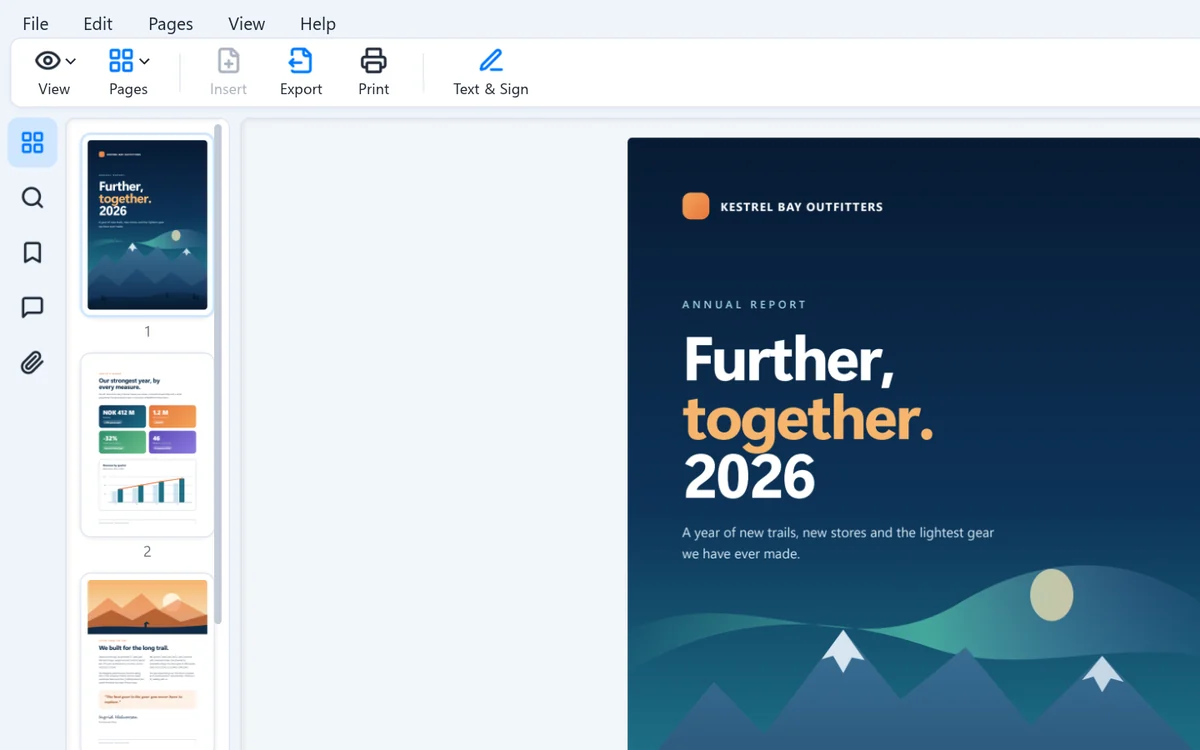
Instant, every time
A native Windows app that starts in under 300 ms, not a web page in disguise. Scrolling and zooming stay smooth through hundreds of pages.
 Sentiri
Organized by the task at hand, with a checklist of every capability at the end.
The first page in under 300 ms on the developer's PC.
Printers are found in the background while the dialog is already open.
Right-click to convert or view, and preview PDFs in the preview pane.
Read PDF attachments right in the reading pane.
Open, move around and find things, fast.
A native Windows app that starts in under 300 ms, not a web page in disguise. Scrolling and zooming stay smooth through hundreds of pages.
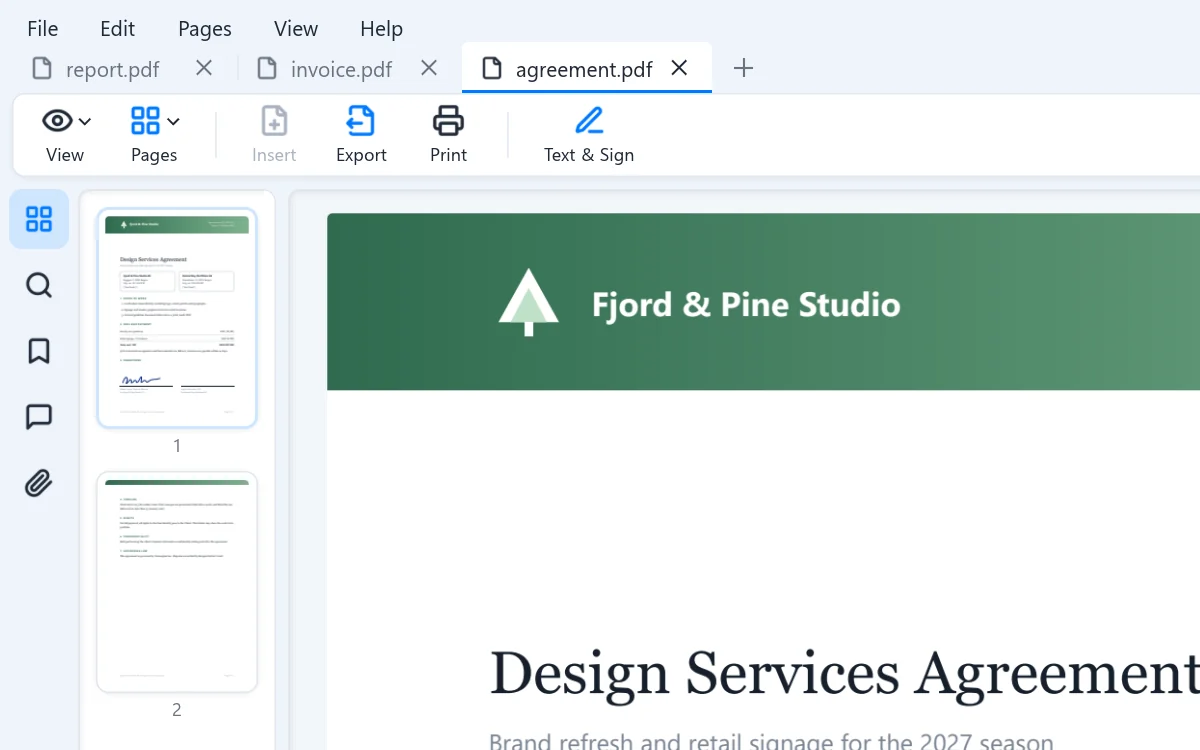
Every document in its own tab, all in one window. Prefer a window per file? That is one setting away.
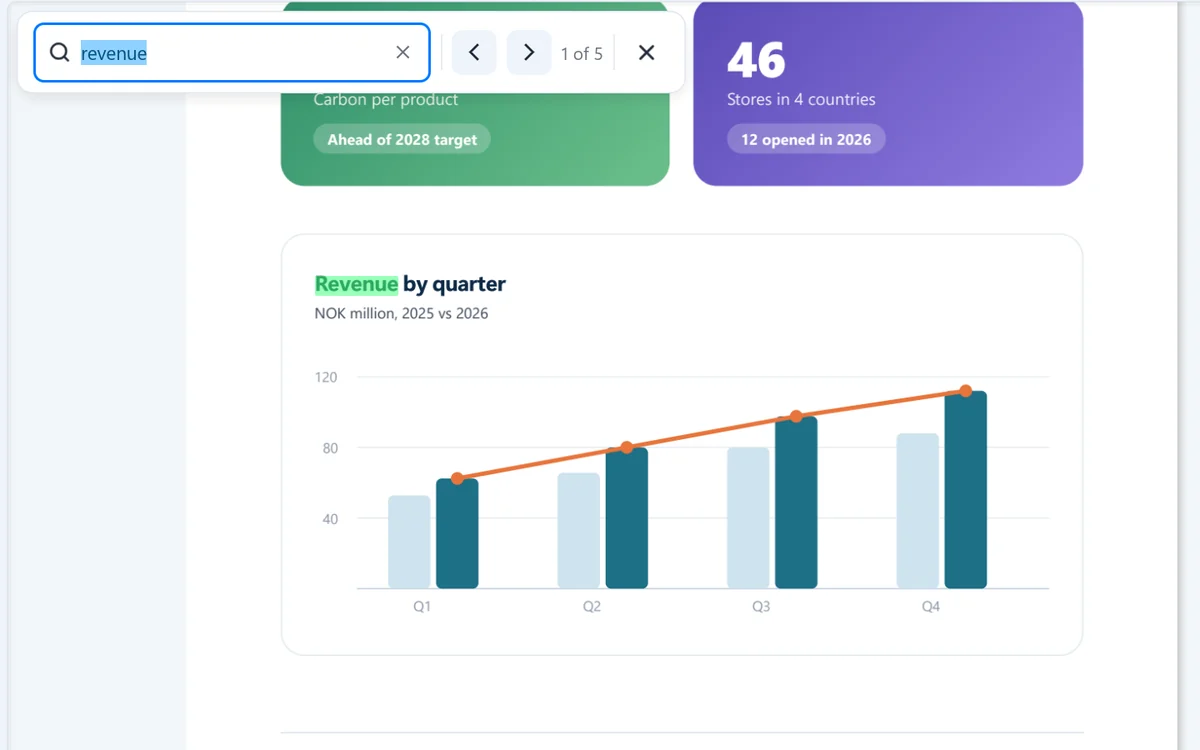
Press Ctrl F and every match lights up. Enter steps to the next one.
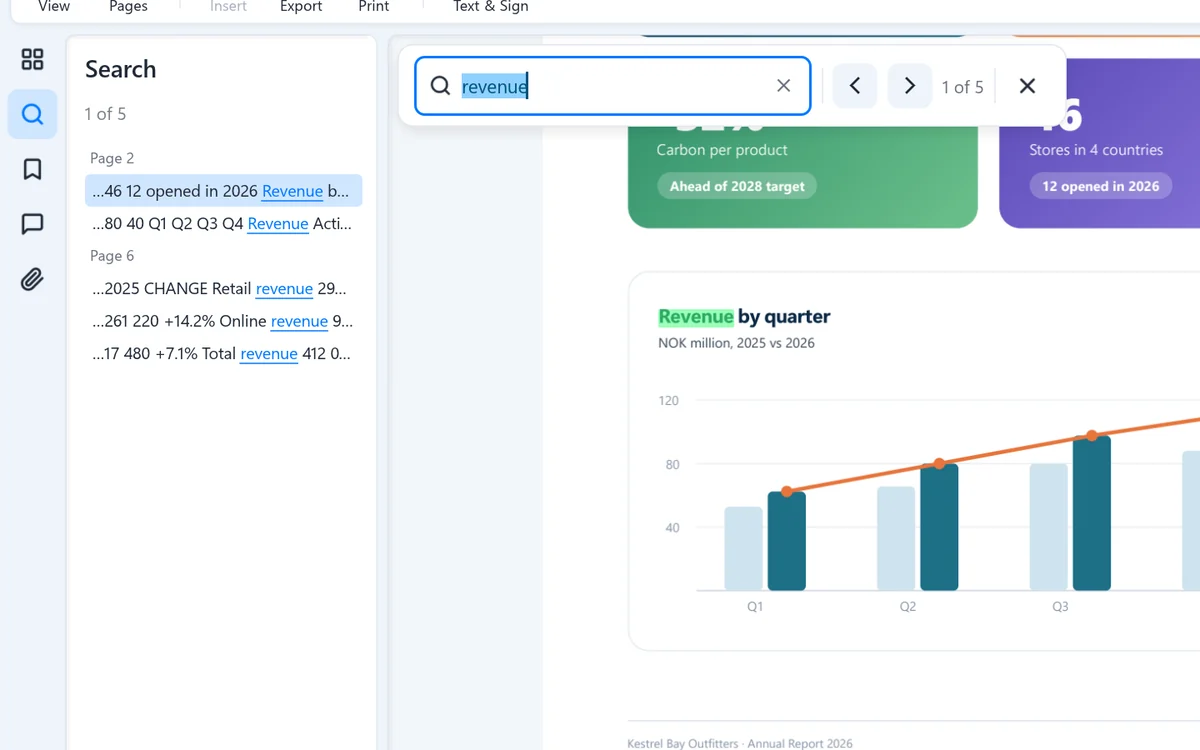
The Search panel lists each match with the words around it, by page. Click one to go straight there.
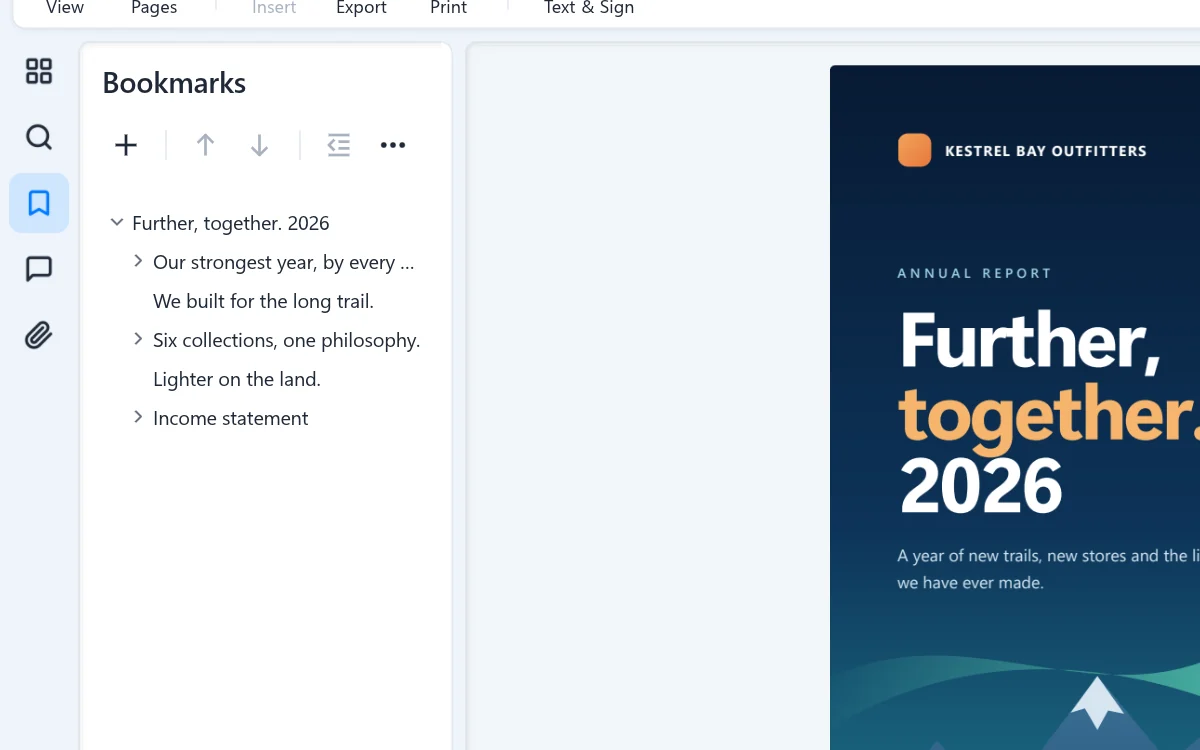
Jump through long documents with their bookmarks. Add, rename and reorder your own, and they are saved in the PDF.
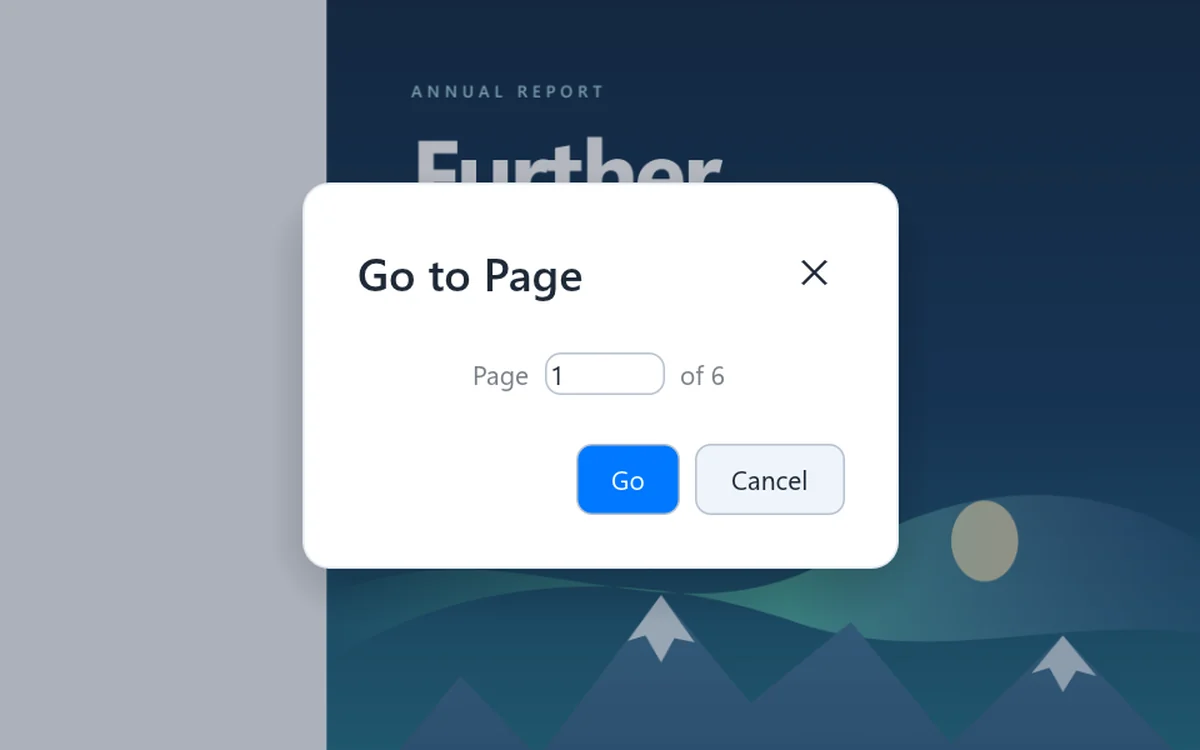
Ctrl G, type a number, and you are there.
Put the right pages in the right order, from any file.
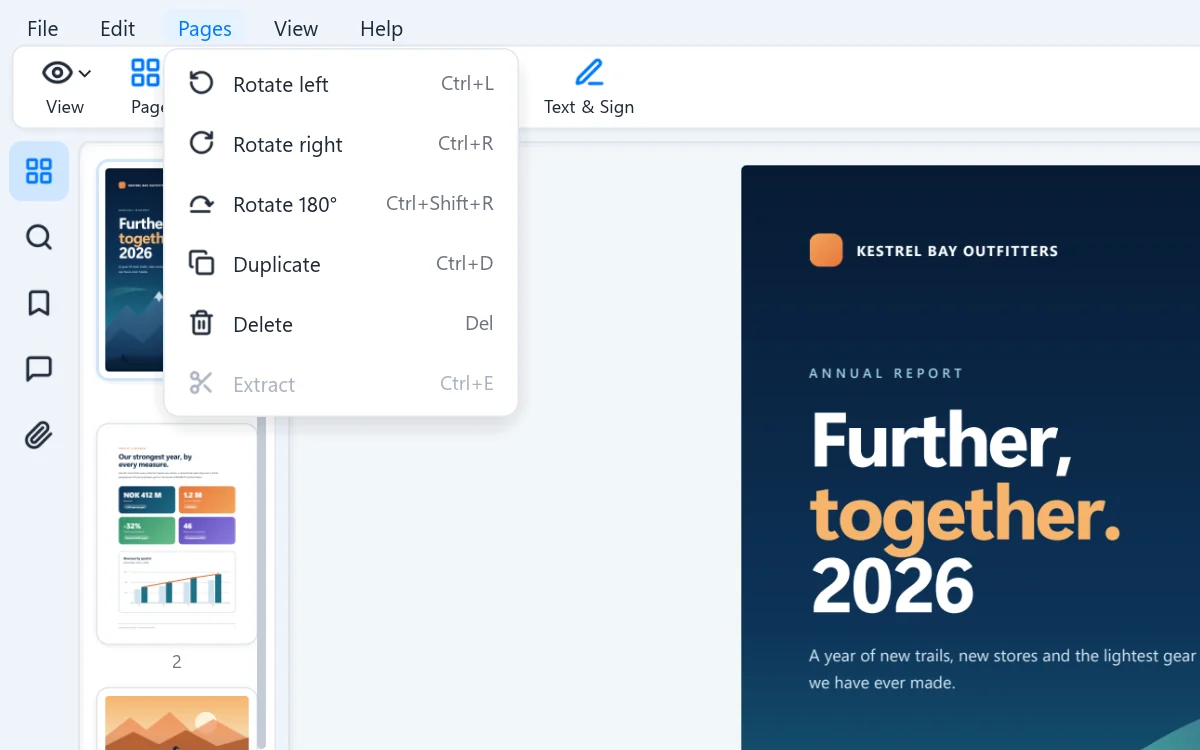
Rotate, duplicate, delete and drag pages into place, or extract a selection as a new PDF. Undo is always one keystroke away.
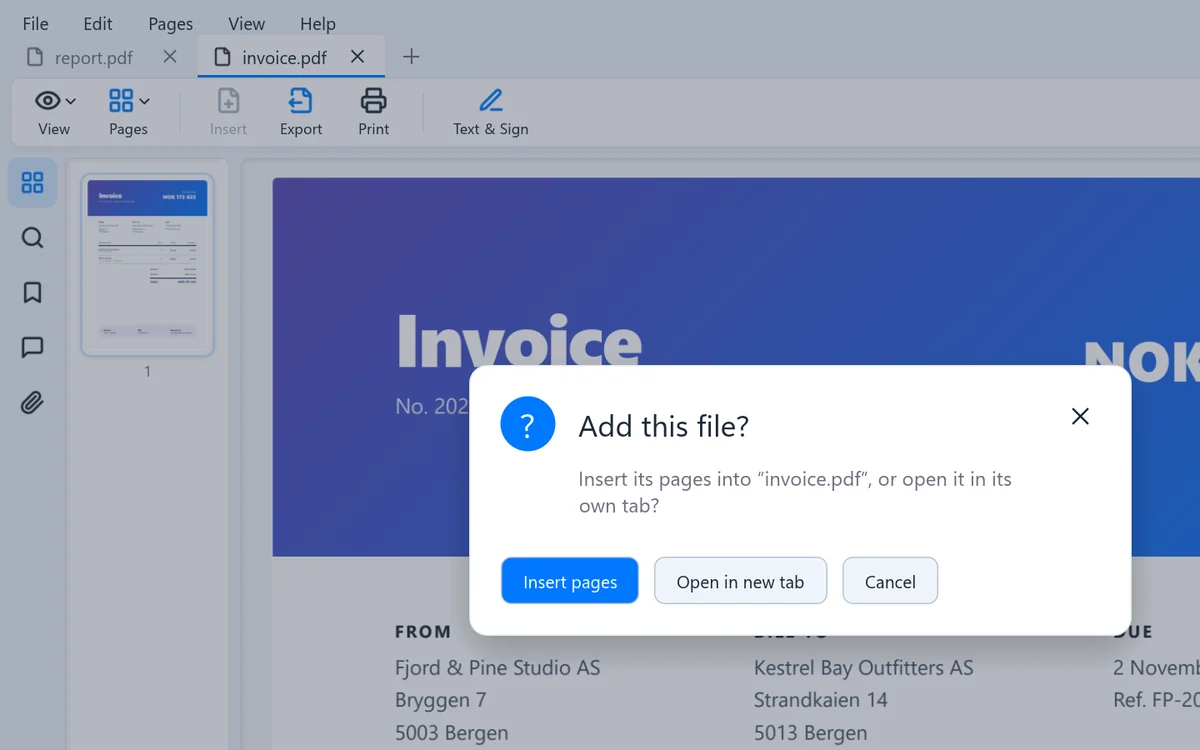
Drag in PDFs, documents and pictures in any mix and choose: add the pages, or open a new tab. Drag the result back out to a folder or an email.
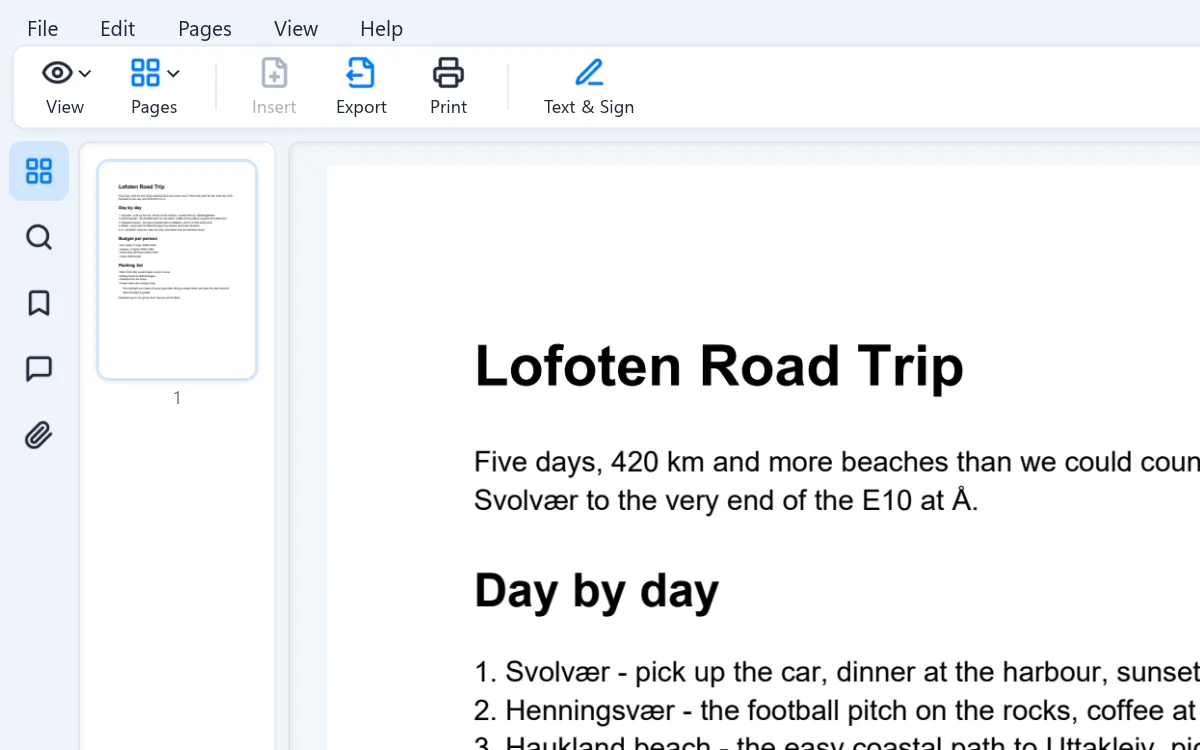
Word, Markdown, HTML, text and images become a PDF the moment you open them. Or just paste: a copied picture or web page turns into pages, ready to merge.
Finish the paperwork without printing a thing.
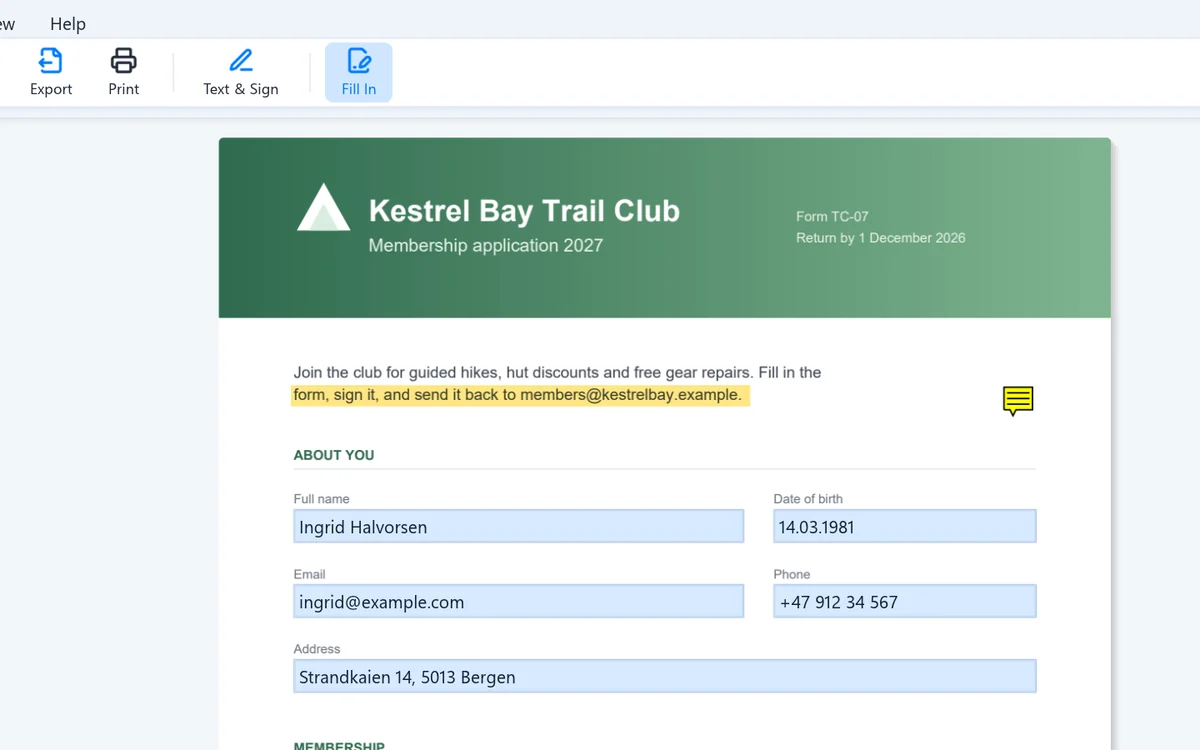
Type into fields, tick boxes and pick from lists. A filled form saves filled in, and stays fillable.
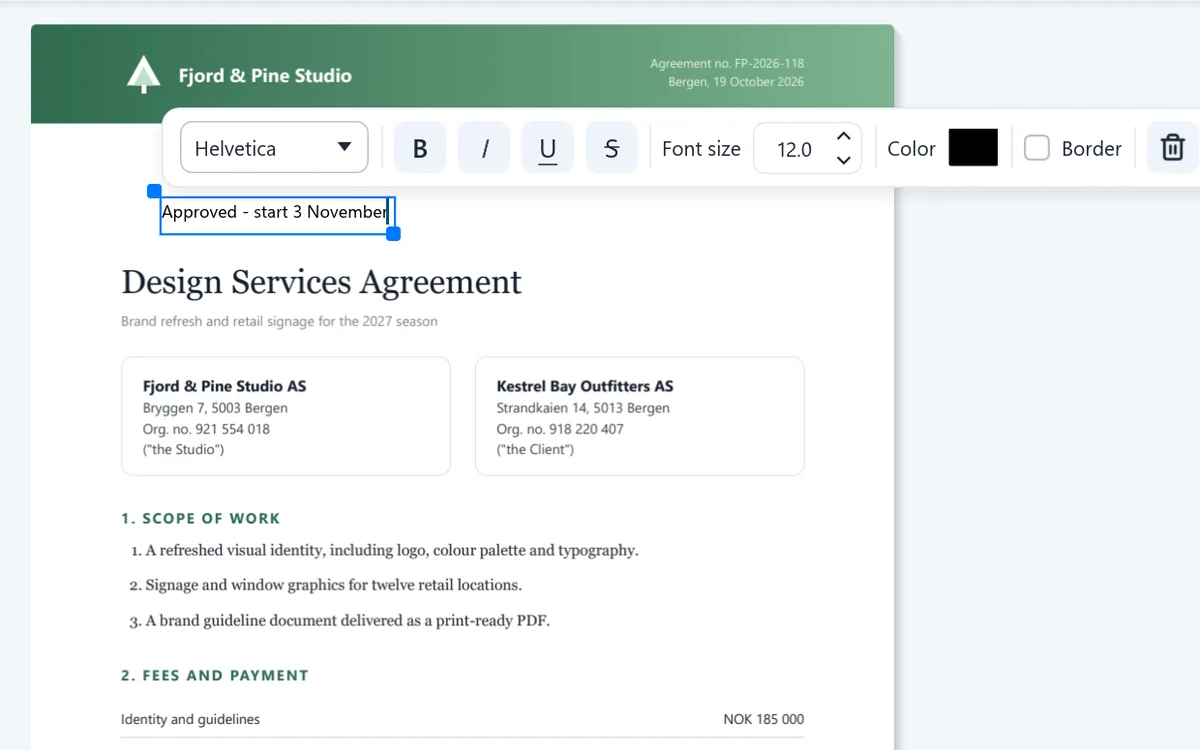
Add text anywhere on a page, with its own font, size and color. Draw your signature once and place it on every document after.
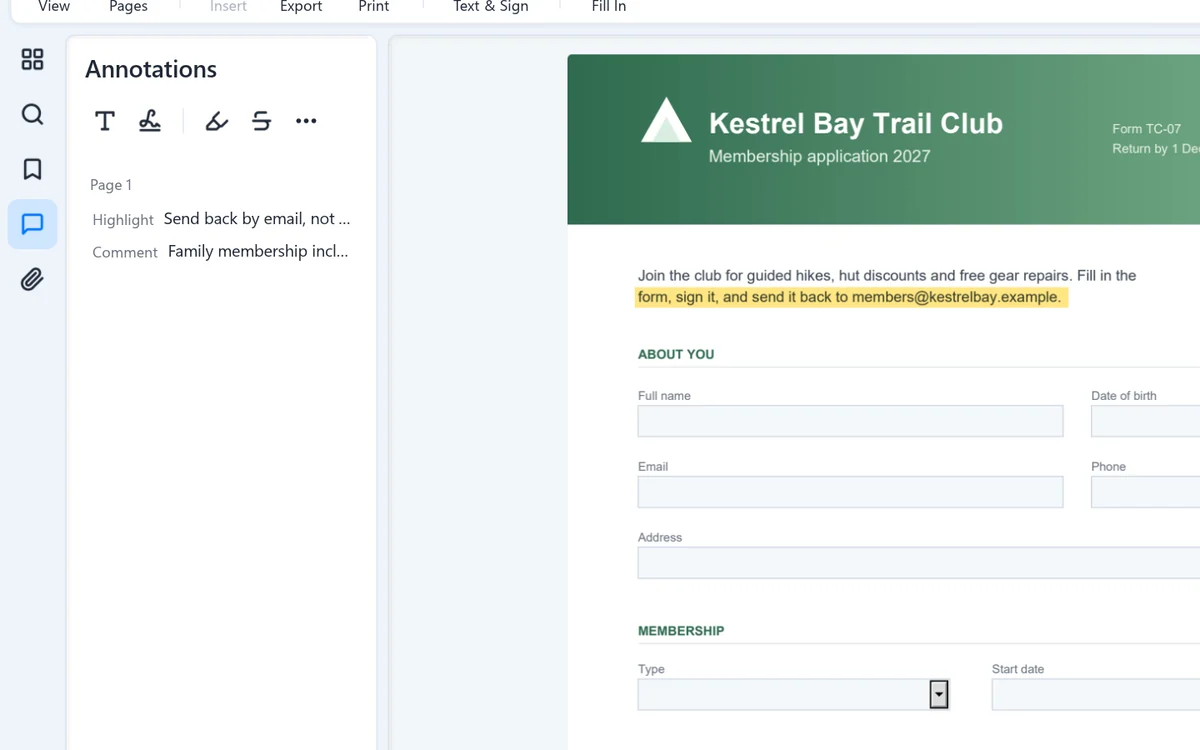
Highlight or strike out text, draw lines, and see every comment in the document in one list.
Get the finished PDF where it needs to go.
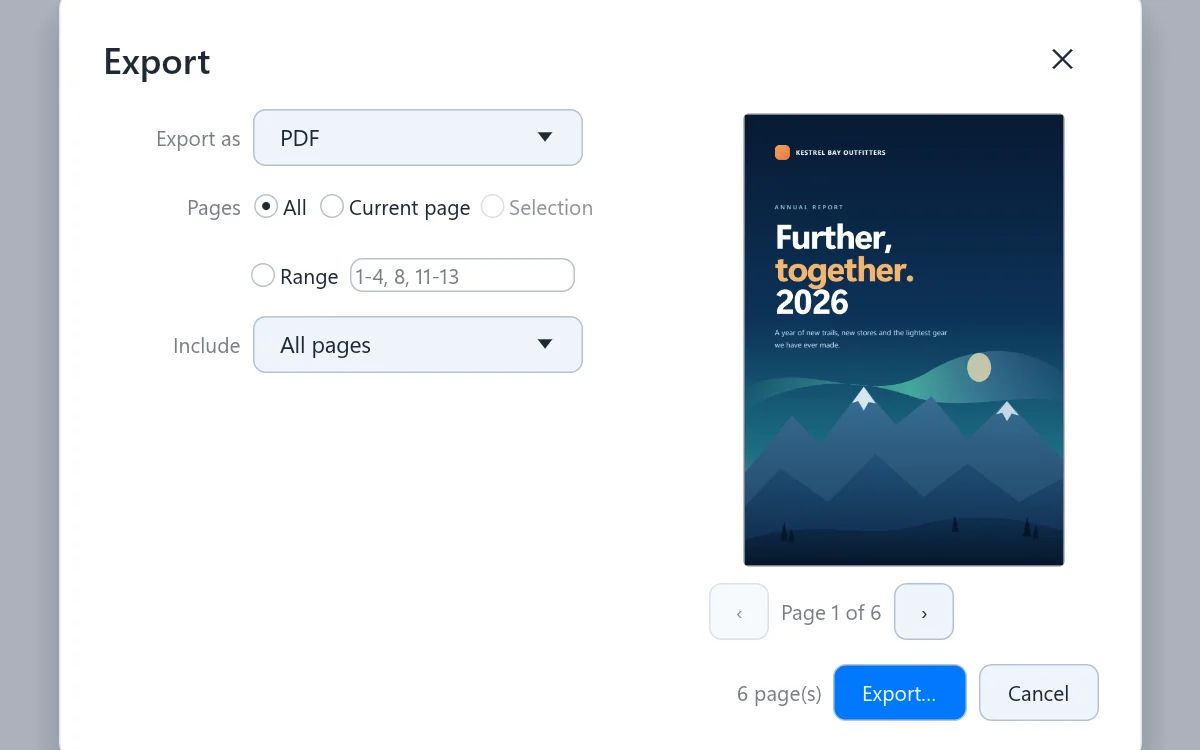
Save all pages, the current one, a selection or a range, as a PDF or as images, with a preview.
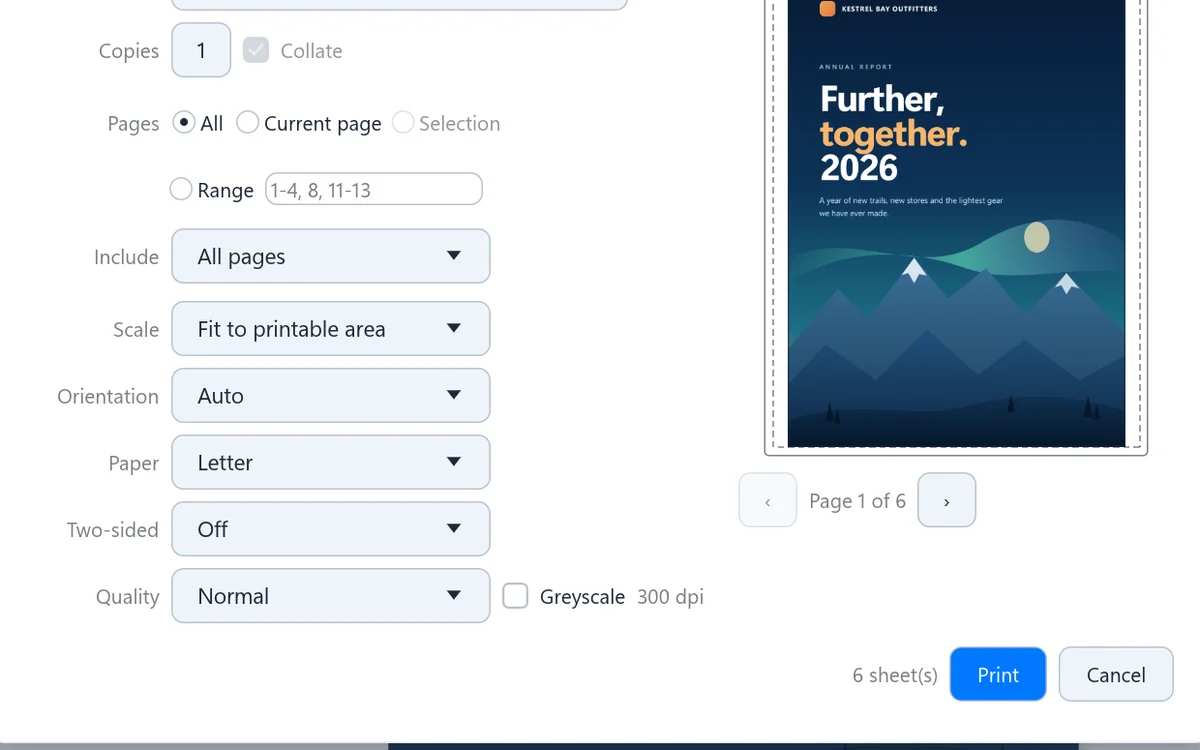
Copies, ranges, scaling, two-sided and greyscale, with a preview. Then keep working while it prints: the app never freezes on a big job.
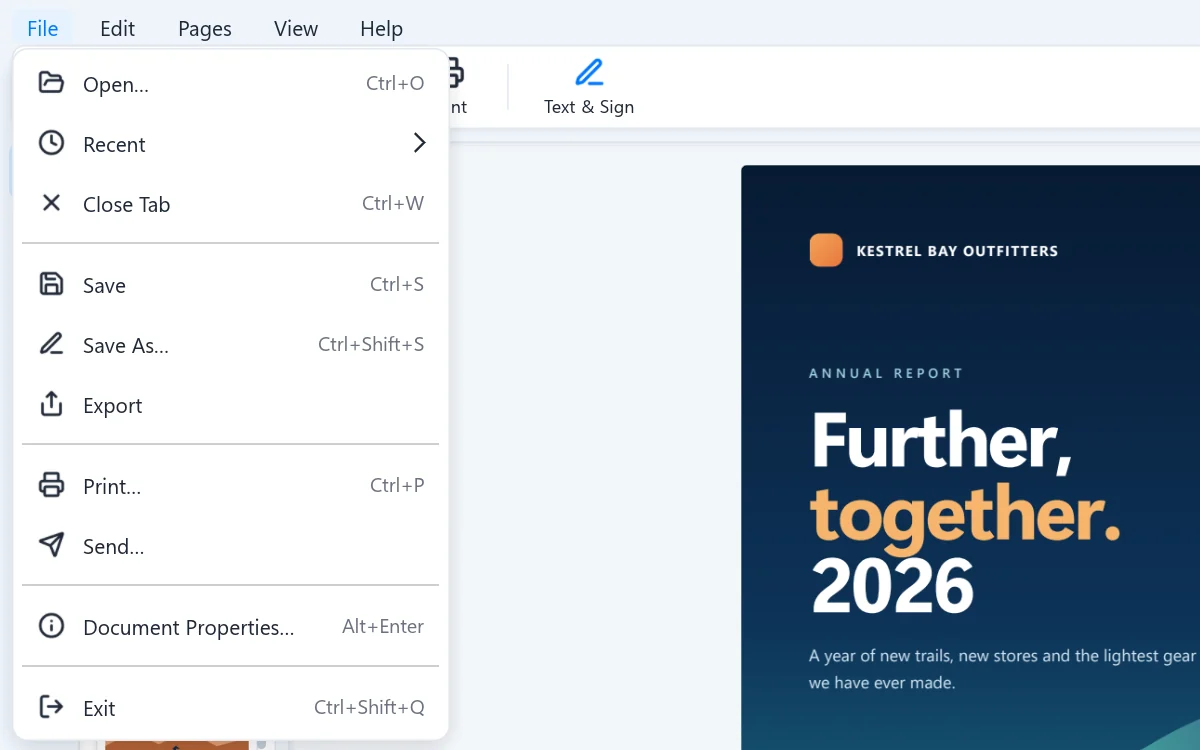
File, Send hands the PDF to your email program, ready to go. Recent files are one click away in the same menu.
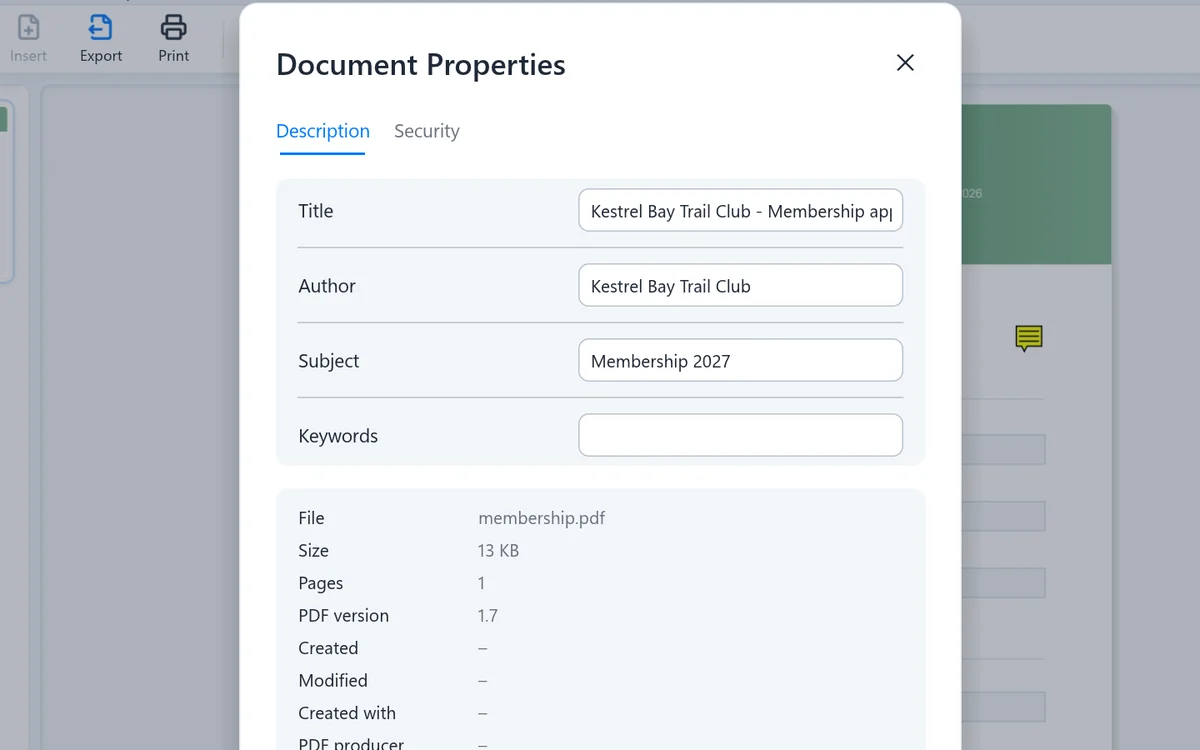
See the file's details, and set the title, author, subject and keywords that search tools use.
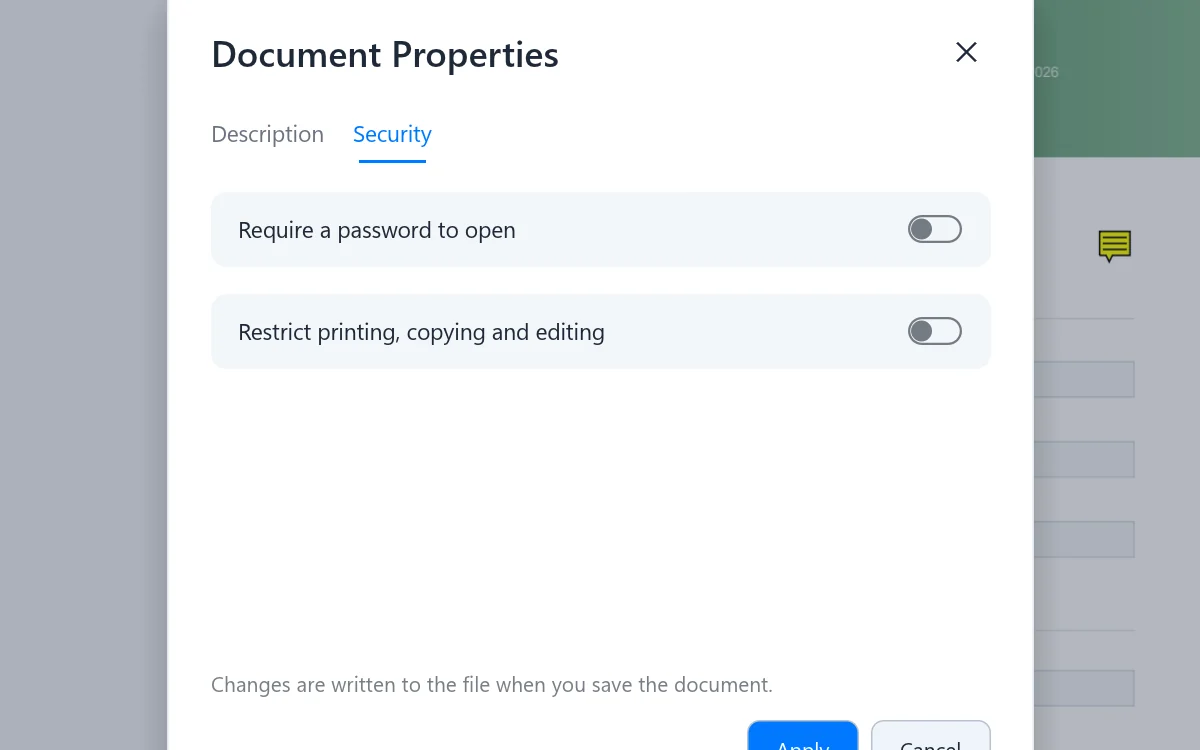
Require a password to open a PDF, or restrict printing, copying and editing. Protected files open once you type the password.
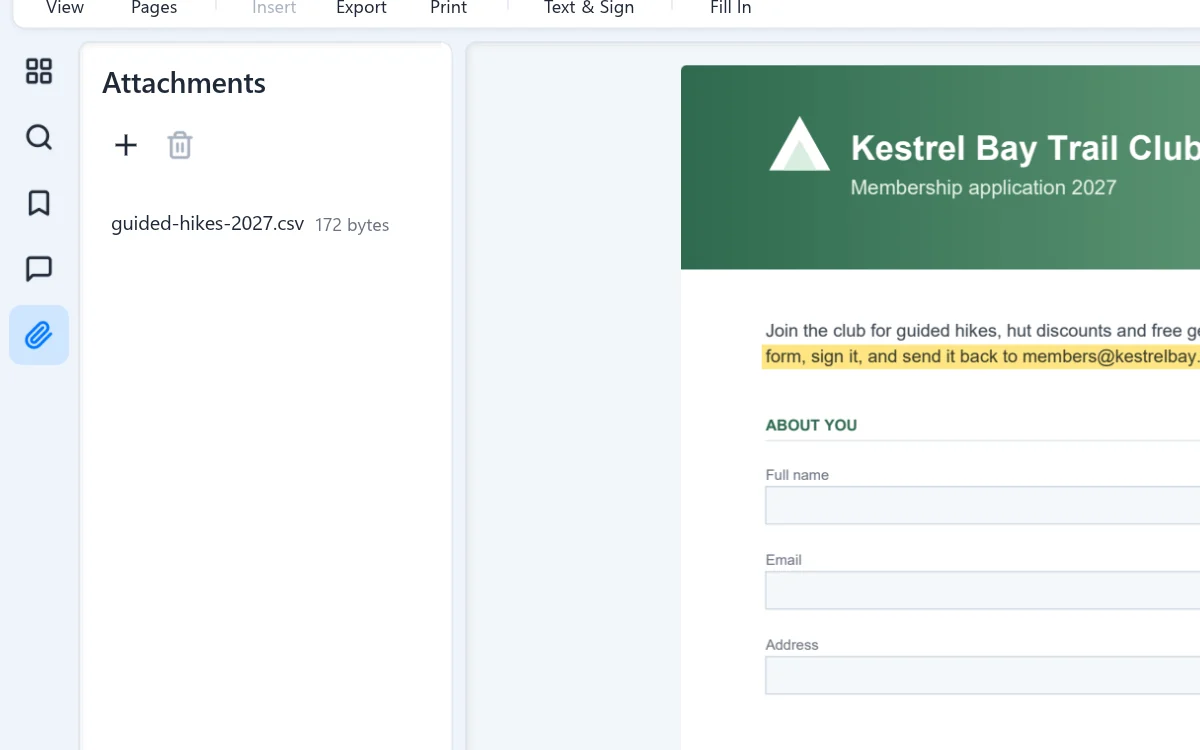
See the files a PDF carries inside it, and add or remove your own.
Built into File Explorer and Outlook, and set up just the way you like.
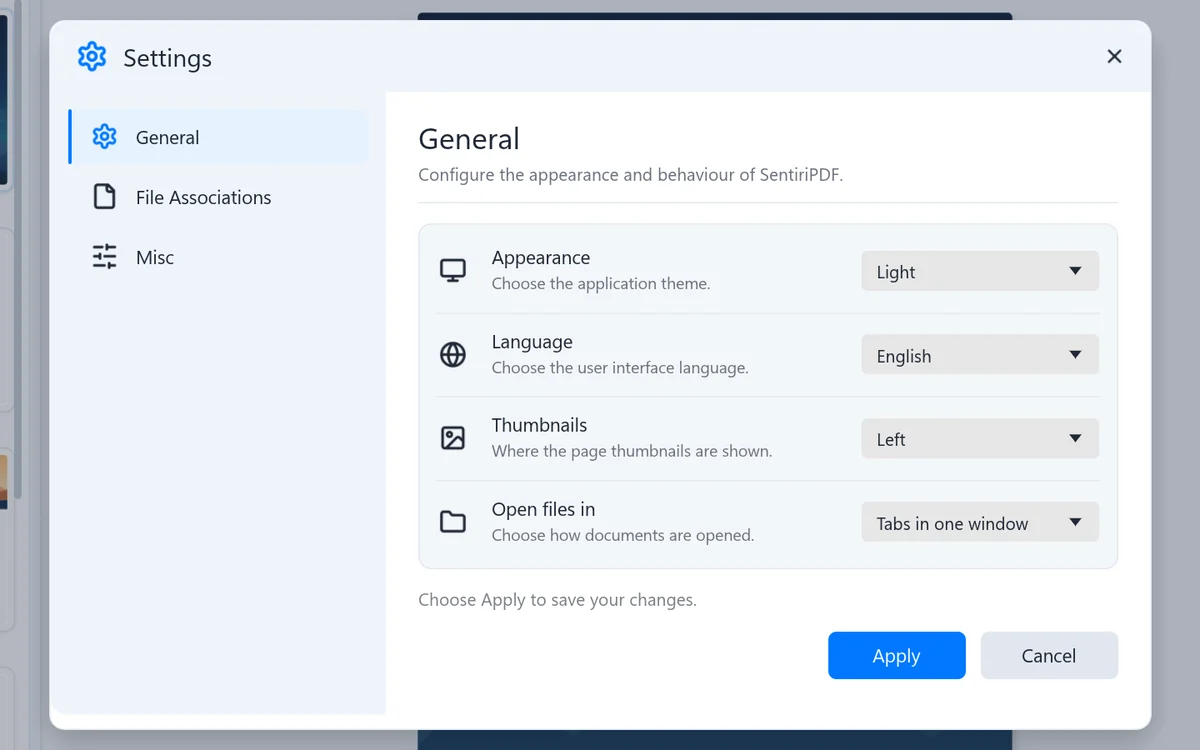
Language (English or Norwegian), which side the thumbnails sit on and how files open, plus which file types and previews SentiriPDF handles.
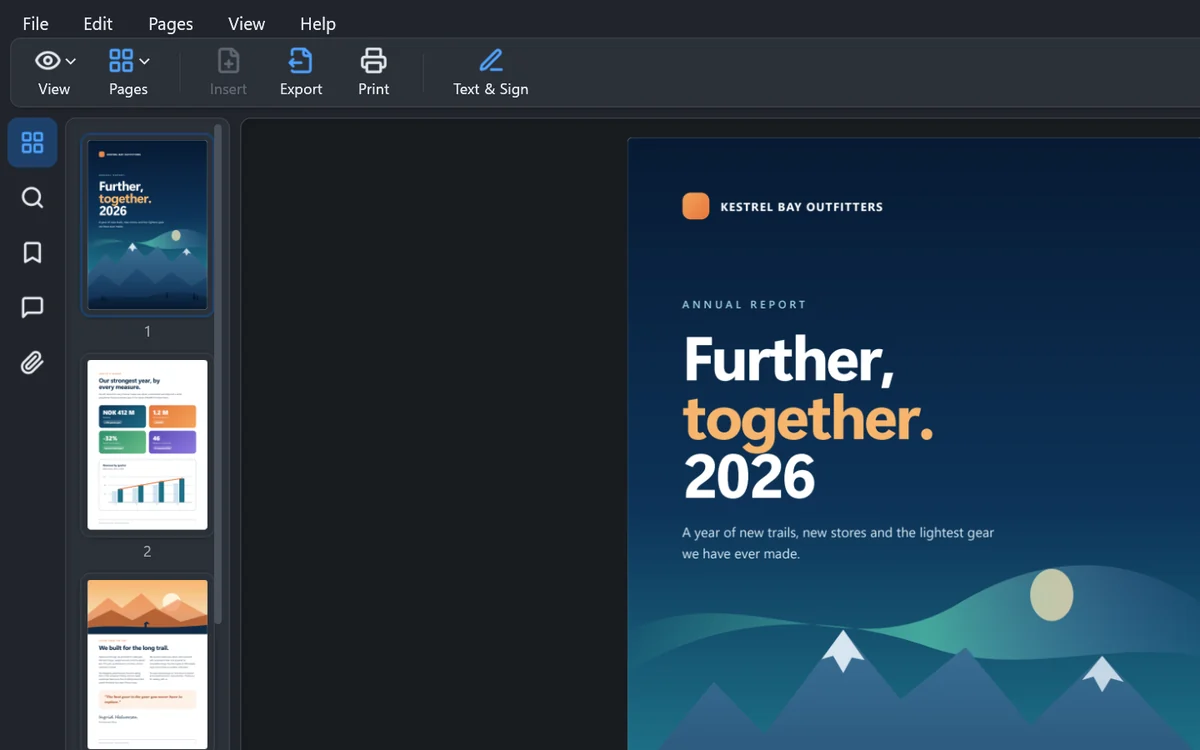
Follows your Windows theme, or pick light or dark yourself. The pages stay true to the document either way.
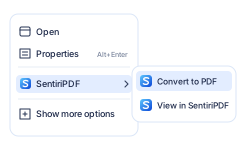
In File Explorer, right-click any supported file: Convert to PDF, or View in SentiriPDF. Select several to combine them.

Read a PDF in Explorer's preview pane the moment you select it, without opening anything.
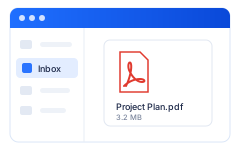
Preview PDF attachments right in Outlook Classic's reading pane.
Pay once and it is yours. No Sentiri account, no nag screens, and your files never leave your PC.
Every capability at a glance, grouped by what you want to do.
| Group | Capability | What it means |
|---|---|---|
| Read + find | Open and read PDFs | Tabs, page thumbnails, light and dark mode, password-protected files |
| Read + find | Search and navigation | Find as you type, a list of all matches, bookmarks, go to page |
| Create | Convert to PDF | Word, Markdown, HTML, text files and images (PNG, JPG, WebP, BMP, TIFF) |
| Create | Create from the clipboard | Paste pictures or web content to get PDF pages |
| Organize | Combine files | Merge PDFs, documents and pictures in any mix |
| Organize | Page operations | Rotate, reorder, duplicate, delete and extract pages, with undo |
| Mark up | Annotation tools | Text anywhere, highlight, strike out, lines, comments |
| Forms | Fill in PDF forms | Text fields, check boxes and lists; a filled form stays fillable |
| Sign | Add your signature | Draw it once or import a picture, then place it on any page |
| Output | Export and print | PDF or images, page ranges, copies, scaling, two-sided, greyscale |
| Share | Send and drag out | Send by email from the File menu, or drag the PDF to a folder or an email |
| Protect | Passwords and properties | Require a password, restrict printing and editing, edit title and author |
| Windows | File Explorer and Outlook | Right-click Convert to PDF or View, preview pane, Outlook Classic previews |
| Privacy | Local processing | Your documents are never uploaded to Sentiri or anyone else |
| Purchase | 7-day full trial | Microsoft Store; then $9 once for version 1 |
On purpose, so you know before you buy.
Every feature in the trial. No subscription, no Sentiri account, no cloud.
